
music player offline 7 min read
6 min read
How to Organize Your Music Library on Android
music libraryorganizationandroidtips
A messy music library is frustrating. Songs show up as “Unknown Artist,” album art is missing, and you can never find what you want. I’ve been there. Here’s the system I use for my own collection.
Start With Your Folder Structure
The simplest approach that works with every music player:
Music/
  Artist Name/
    Album Name (Year)/
      01 - Song Title.mp3
      cover.jpg
Three rules:
- One folder per artist, one sub-folder per album
- Prefix tracks with numbers for correct ordering
- Place a
cover.jpg(orfolder.jpg) in each album folder
I keep cover.jpg at 500x500px max. Larger files slow down scanning without looking any better on a phone screen.
Fix Your ID3 Tags
Tags are what your music player actually reads. If they’re wrong, the player can’t help you.
Tools I recommend:
- MusicBrainz Picard (PC) — Queries a music database to auto-tag files. Free and excellent for batch fixes.
- MP3Tag (PC) — More manual control. Good for custom fields.
- AutomaTag (Android) — Quick fixes on your phone.
Essential tags to get right:
- Title and Artist — The two fields almost every player sorts by
- Album — Without this, compilation albums scatter everywhere
- Track Number — Ensures correct playback order
- Genre — Powers smart playlists
Managing Playlists
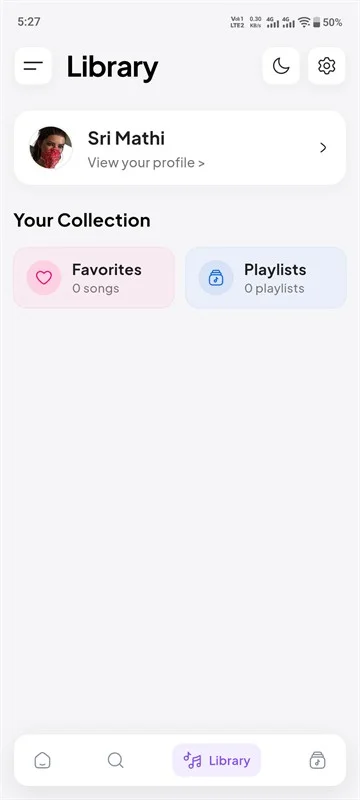
I organize my playlists by use case rather than genre:
- By activity: Commute, Gym, Focus, Sleep
- By mood: Chill, Energetic, Rainy Day
- By timeframe: Favorites 2024, Summer Hits, Recently Added
Musiqly uses SharedPreferences for playlist persistence — your playlists survive app restarts and can be exported as JSON backup files. The backup saves song metadata (videoId, title, artist, album, artwork URL) but not streaming URLs, which expire anyway.
Avoid These Mistakes
Don’t use special characters in file names. Android’s file system handles them, but some scanning libraries don’t. Stick to alphanumeric, spaces, hyphens, and underscores.
Don’t keep duplicate files. Use a duplicate finder app occasionally. Duplicate songs waste scan time and clutter your library.
Don’t ignore album art. Players that display covers (like Musiqly) look empty without them. Embed art directly in the file’s ID3 tags rather than relying on folder.jpg — it’s portable when you copy files.
Backup Your Library Metadata
Your music files are irreplaceable. Your organization of them (playlists, favorites, ratings) is fragile. Musiqly includes a backup feature that exports everything to a JSON file stored in your Downloads folder. Importing it on a new device restores your structure without touching the audio files themselves.
The backup format is straightforward:
{
  "version": 1,
  "likedSongs": [
    {
      "videoId": "...",
      "title": "...",
      "artist": "...",
      "album": "..."
    }
  ]
}
FAQ
What’s the best folder structure for Android?
Artist/Album/Track is universal and works with every player. Avoid deeply nested folders.
Does Musiqly support smart playlists?
Yes. You can create playlists manually and reorder tracks by drag-and-drop. Auto-generated smart playlists (by genre, recently added) are available in the library tab.
How do I transfer playlists from another app?
Musiqly imports M3U and PLS playlist formats. Export your playlists from the other app, transfer the file to your phone, and use the import option in settings.
Why are some songs showing as “Unknown”?
The audio file is missing ID3 tags. Use MusicBrainz Picard or MP3Tag to embed the correct metadata.
Related: Best Offline Music Player for Android | Top Music Player Features
SK
Sahil Khan
Developer at Musiqly
Sahil is the developer behind Musiqly. He's passionate about creating beautiful, feature-rich apps that enhance the way people experience music on Android.